
Raycast Support in Wox
After using a launcher for a while, you have more than a collection of plugins. You may have shortcuts for frequent actions, quicklinks to pages you visit often, notes, and clipboard history. Those small choices accumulate into a way of working that feels familiar.
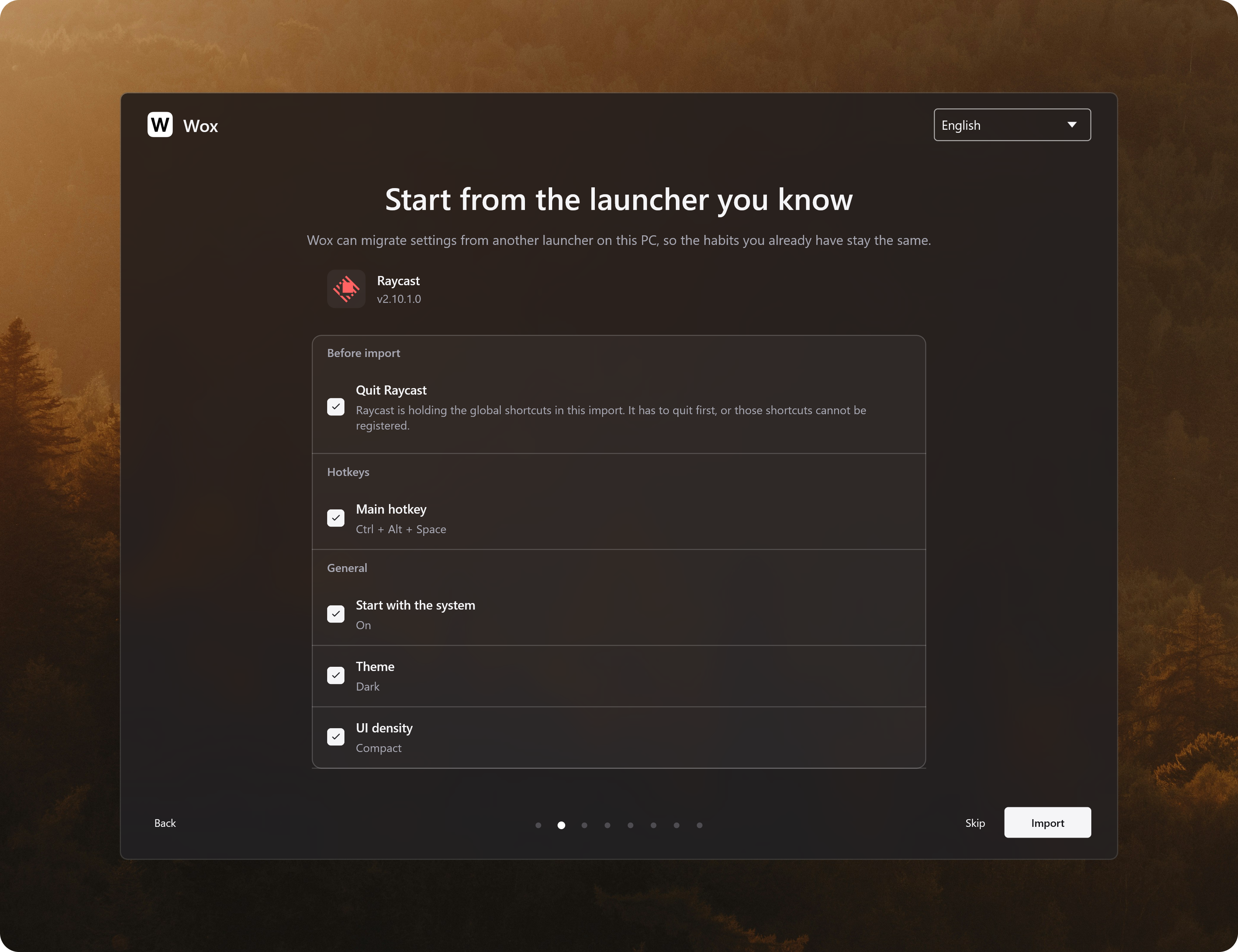
Starting with Wox v2.4.9, if you use Raycast on the same computer, you can import supported settings and data during Wox's initial setup. You can also import compatible plugins already installed locally. We want you to be able to try Wox without first rebuilding those habits from scratch.
There is a clear boundary to this support: Wox does not offer the Raycast Store. Raycast plugins can be selected and imported only from an existing local installation in the onboarding migration step.
Why support import?
A launcher is a personal tool. Which apps you open, what aliases you give commands, and which shortcuts you use are choices often refined over time. Even when two tools can accomplish the same task, getting back to a familiar workflow takes work.
We want users to be able to explore Wox while bringing along their existing configuration. For example, if you have saved useful websites and shortcuts in Raycast, you can review what can be migrated and start using Wox with familiar actions. You can also choose from supported settings, quicklinks, snippets, notes, and clipboard history. The two products do not have identical features, so the import screen identifies items that cannot be migrated or need attention.
The same applies to plugins. An installed plugin may provide a small tool you use every day. For compatible local plugins, we offer a way to run some of their commands, so you can try continuing to use them without immediately finding a replacement.
Why not offer the Raycast Store?
Plugins are works that their authors spend time creating and maintaining. A store does more than display them: it also involves how those works, their assets, and their publication channels are used and distributed. We respect the rights of Raycast and plugin authors in these areas. Helping users migrate does not mean Wox should bring another product's store directly into Wox.
We know some other software offers a similar store experience. Because of copyright and distribution concerns, Wox has chosen a different boundary: we do not offer the Raycast Store in Wox, or use it to browse or download Raycast plugins. That is our product decision, not a judgment about other software or the license of every plugin.
Instead, Wox offers a one-time local import initiated by the user. The setup wizard uses plugin references in the Raycast backup to find corresponding files already on this computer, then lets the user select available items. The backup contains references, not executable plugin files. If local files are missing, Wox will not try to download them from a store. This entry point is for migration during onboarding; it is not a continuously synchronized store.
How to import
On Windows or macOS, keep Raycast and the plugins you want to import installed on this computer. Wox displays its onboarding guide the first time you run it and offers a migration option if it detects Raycast. If you have already completed onboarding, open Settings → About → Onboarding in Wox to run the guide again.
- In Raycast, search for
export settingand export your settings and data. Keep the.rayconfigfile and the passphrase you used for the export. Use Raycast 2.0 or newer to create it. - In the Wox onboarding guide, go to the migration step, choose Raycast, select the export file, and enter its passphrase.
- Review the available items, select the settings, data, and local plugins you want, and start the import. The list explains when a plugin is missing, does not match the backup, or is not currently supported.
After importing, enter a plugin's trigger keyword in Wox and follow the command prompts. You can find its preferences in Wox's plugin settings; if a required value was not included in the backup, you may need to enter it again.
What may work differently after import
Wox provides a compatibility layer for Raycast plugins, and it currently covers a subset of their APIs. It can map capabilities such as lists, actions, and some forms to Wox's interface, but OAuth, background schedules, and menu bar features are not supported. A successful import does not guarantee that every command will run: that depends on the APIs the plugin uses and the current operating system.
Imported data may not retain every original behavior either. For example, snippets are saved as Wox notes; dynamic placeholders remain as literal text and keywords do not expand automatically. Review the explanations in the import list, then try your frequently used commands and shortcuts after importing.
To find more extensions, visit the Wox plugin store. On Windows, Wox can also import settings and compatible local plugins from Flow Launcher; although it originally forked from Wox, we do not directly offer its plugin store for the same copyright and distribution reasons.