
Open Your Favorite Web Panels with a Shortcut
Checking a status page or glancing at a timeline may only take a few seconds. Opening the browser, finding the right tab, and returning to your work can take more attention than the check itself.
WebSearch's WebView option puts a saved website in a compact panel that you can open with a shortcut. This example starts with a working query for X, then turns it into a reusable shortcut. The feature is available on Windows, macOS and Linux; Linux requires WebKitGTK 4.1 or 4.0.
Check that the site opens in Wox
Open Settings → Installed Plugins → Web Search. Under Web Searches, click Add and fill in the fields for a fixed website:
| Field | Example value |
|---|---|
| keyword | x |
| Title | X |
| URLs | https://x.com |
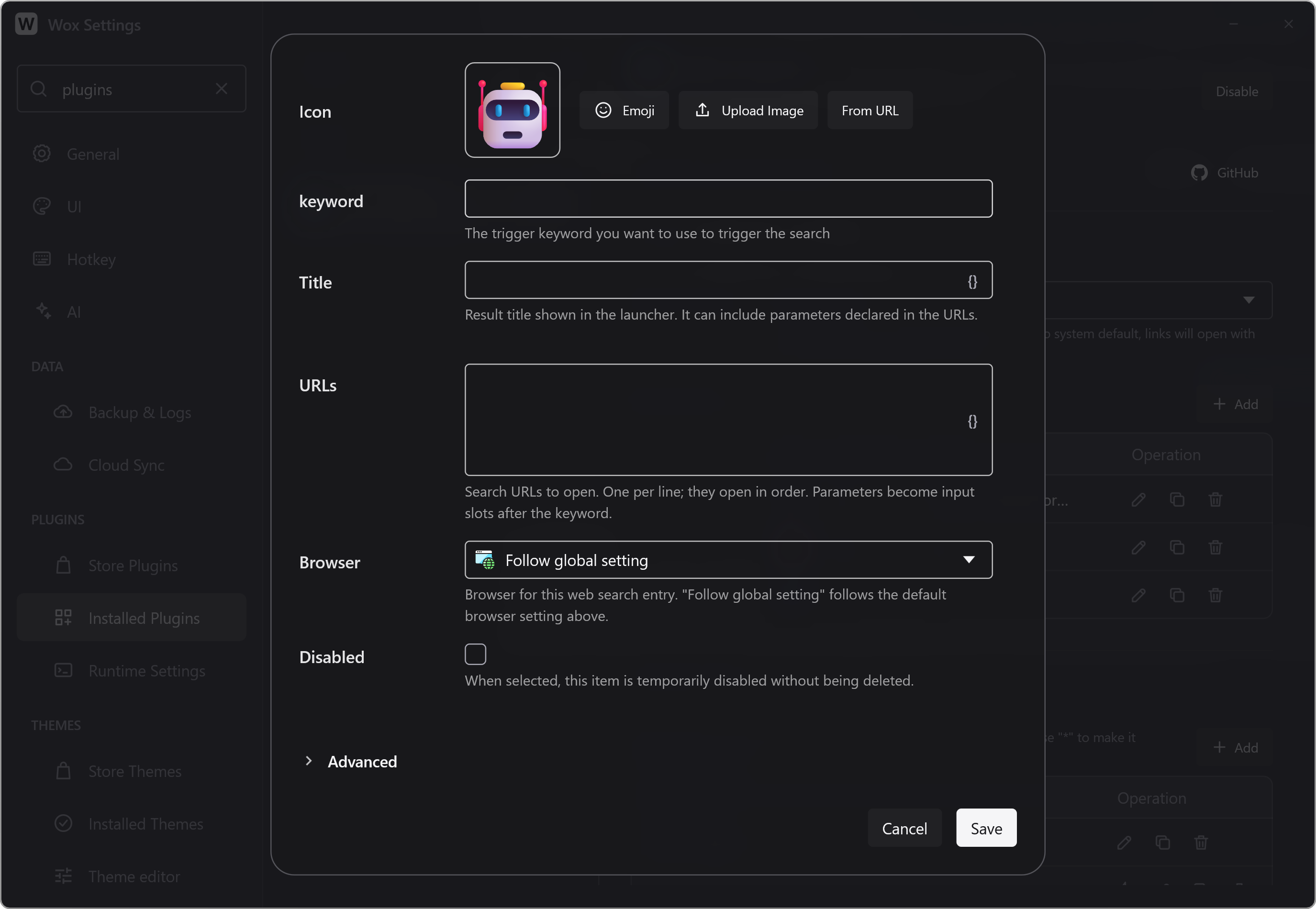
Scroll down in the editor, expand WebView, enable Open by default, and save. The URLs field accepts one URL per line; a WebView preview displays the first resolved URL.
Here x is the keyword configured above. Open Wox, type x followed by a space, and check that the page loads. Add the space to the query, not the keyword field, and keep it when saving the query to a hotkey. If the site requires a login, follow its prompts.
The Instagram screenshots below show the panel in an earlier Wox version; use the current settings and labels in the steps here.
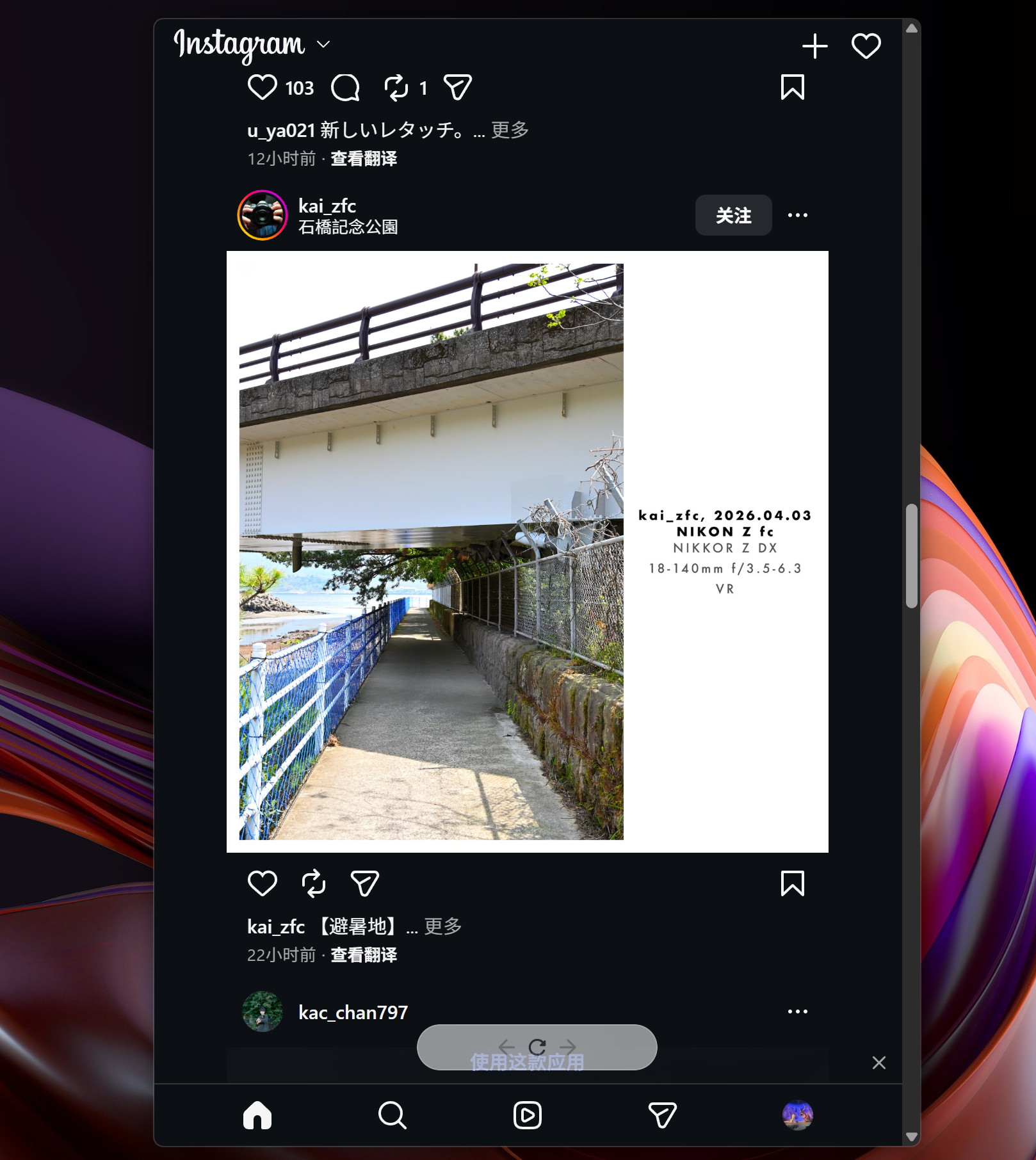
For a status page or dashboard of your own, add another Web Search entry with its own keyword and full URL, and enable WebView → Open by default. With status as the keyword, the query becomes status .
Testing the query manually confirms that the site configuration and page work before you attach a shortcut to them.
Bind the query to a shortcut
Add an entry in Settings → Hotkey → Query Hotkeys:
| Field | Example value |
|---|---|
| Preset | Preview Query |
| Hotkey | An unused combination, such as ctrl+shift+x |
| Query | x |
Preview Query hides the query box, toolbar, and result list, leaving the panel for the page preview. Save the entry and press the shortcut to open it directly, without typing x again.
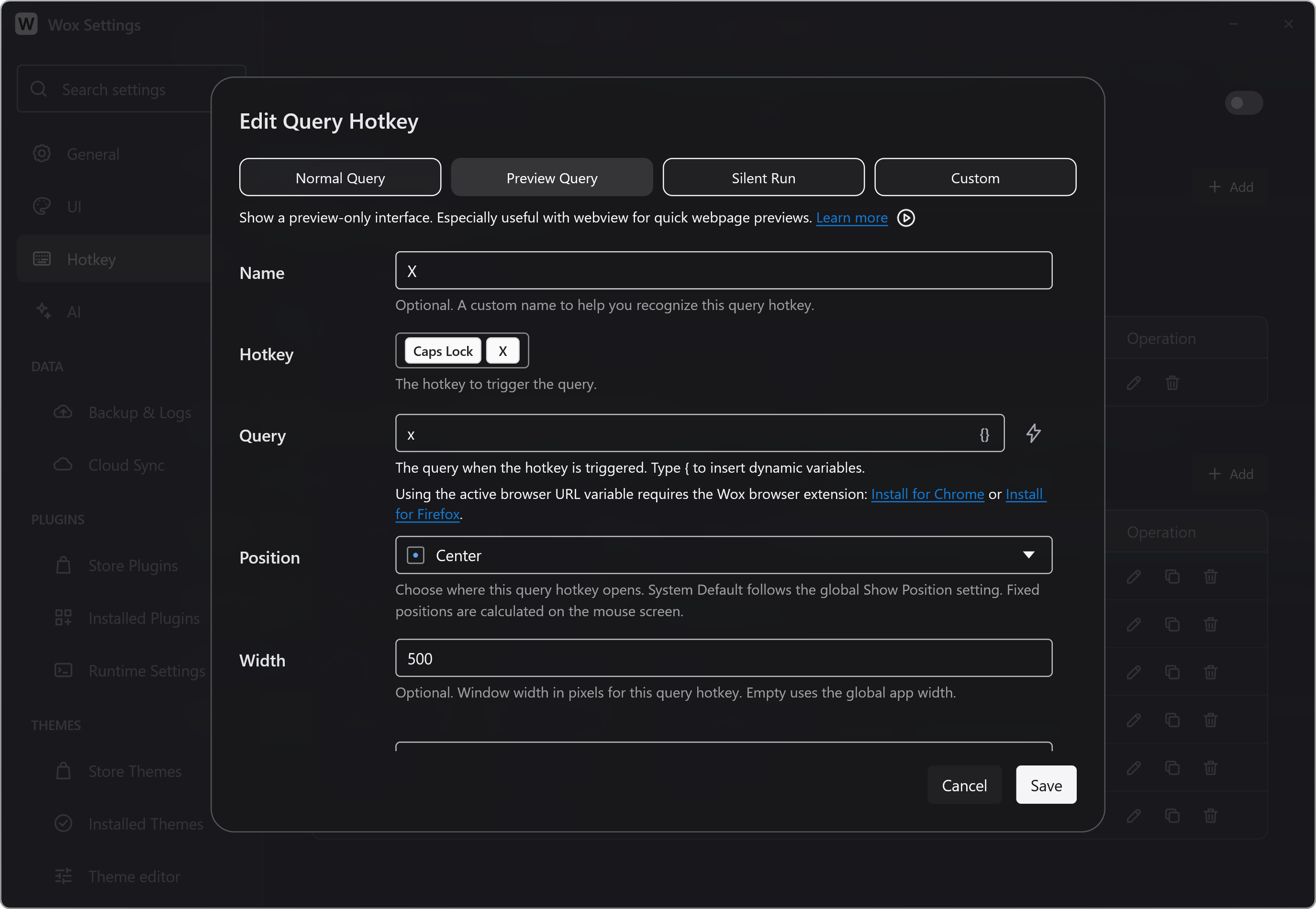
Try the preset size first. If the page feels cramped or scrolls horizontally, adjust the query hotkey's width or position. You can also set a preview width and height in the Web Search entry's WebView settings.
Use the same setup for other sites, replacing the query with your own keyword followed by a space.
Add a tray entry if you prefer clicking
To open the same panel with the mouse, add an entry in Settings → General → Tray Queries. Tray Queries are not available in Linux Wayland sessions.
| Field | Example value |
|---|---|
| Icon | An icon you will recognize for the site |
| Query | x |
| Hide Query Box | Enabled |
| Hide Toolbar | Enabled |
| Width | Try 420, then adjust for the page |
| Maximum Results | 5 |
Clicking the tray or menu-bar icon opens Wox near the tray and runs the query. It uses the same saved site, so you do not need to configure the website again.
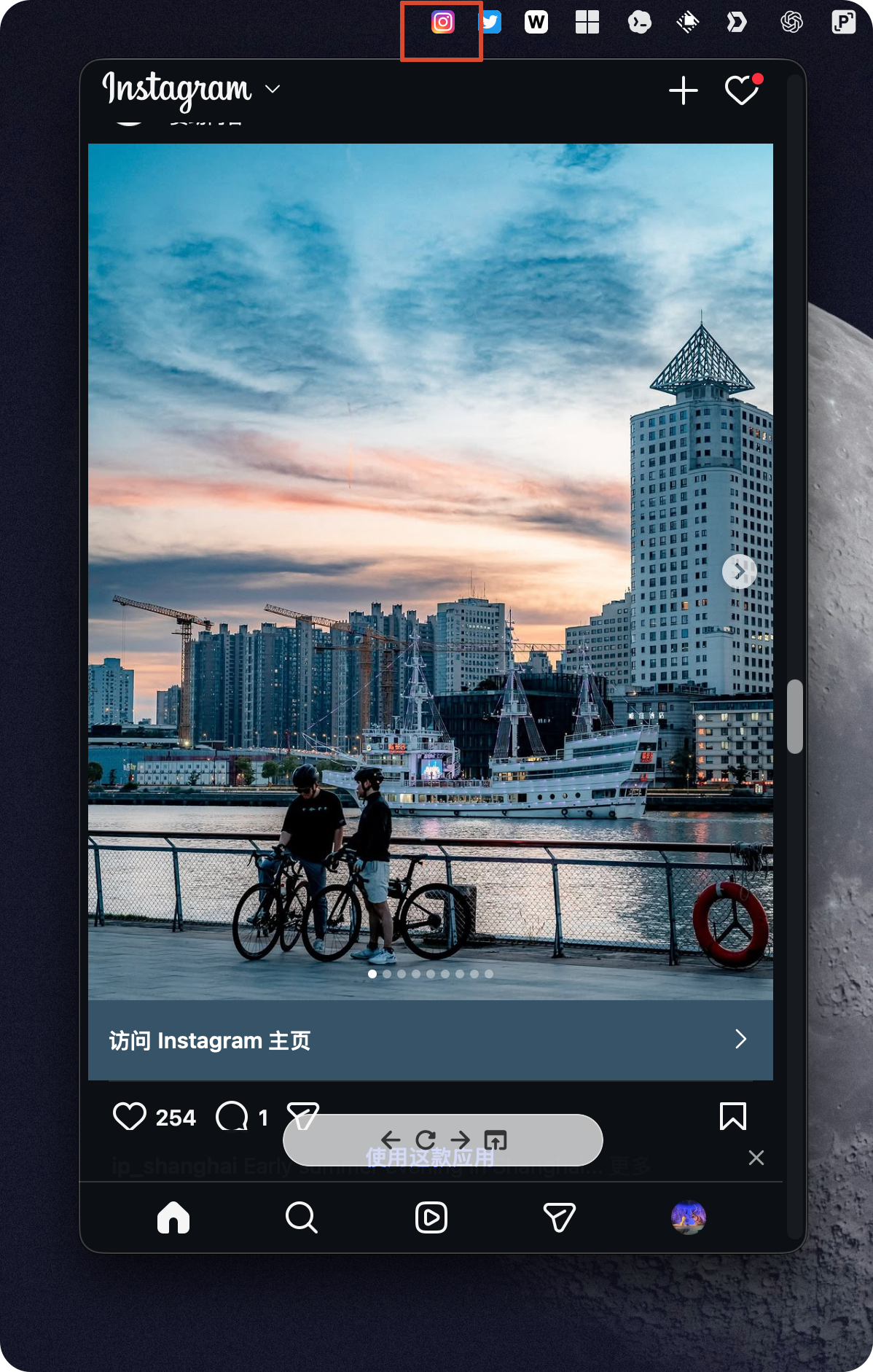
When you want more room to read, need several pages side by side, or find the site awkward to use in a small panel, choose Open in Browser from the result actions and continue there.

If a particular site does not display or sign in correctly within the panel, use Open in Browser.