
Restore Your Workspace Layout with Wox
Starting a coding session might mean putting your editor on the main display, then arranging a terminal and browser beside it. Move those windows for a meeting or a bit of research, and you have to arrange them again when you return. A Wox workspace lets you configure that recurring layout and restore it from the launcher.
On Windows and macOS, a workspace records where your apps' windows should go. For this example, call it Work: an editor on the left and a browser on the right, with a terminal or notes on a second display if you have one.
Save the arrangement you use most
Open Settings → Plugins → Window Manager and add an entry under Workspace layouts:
- Name it
Work, or choose another name you will recognize. - Select a display and choose a window layout.
- Assign an app to each position, such as your editor and browser.
- Configure any other displays you want to use, then save.
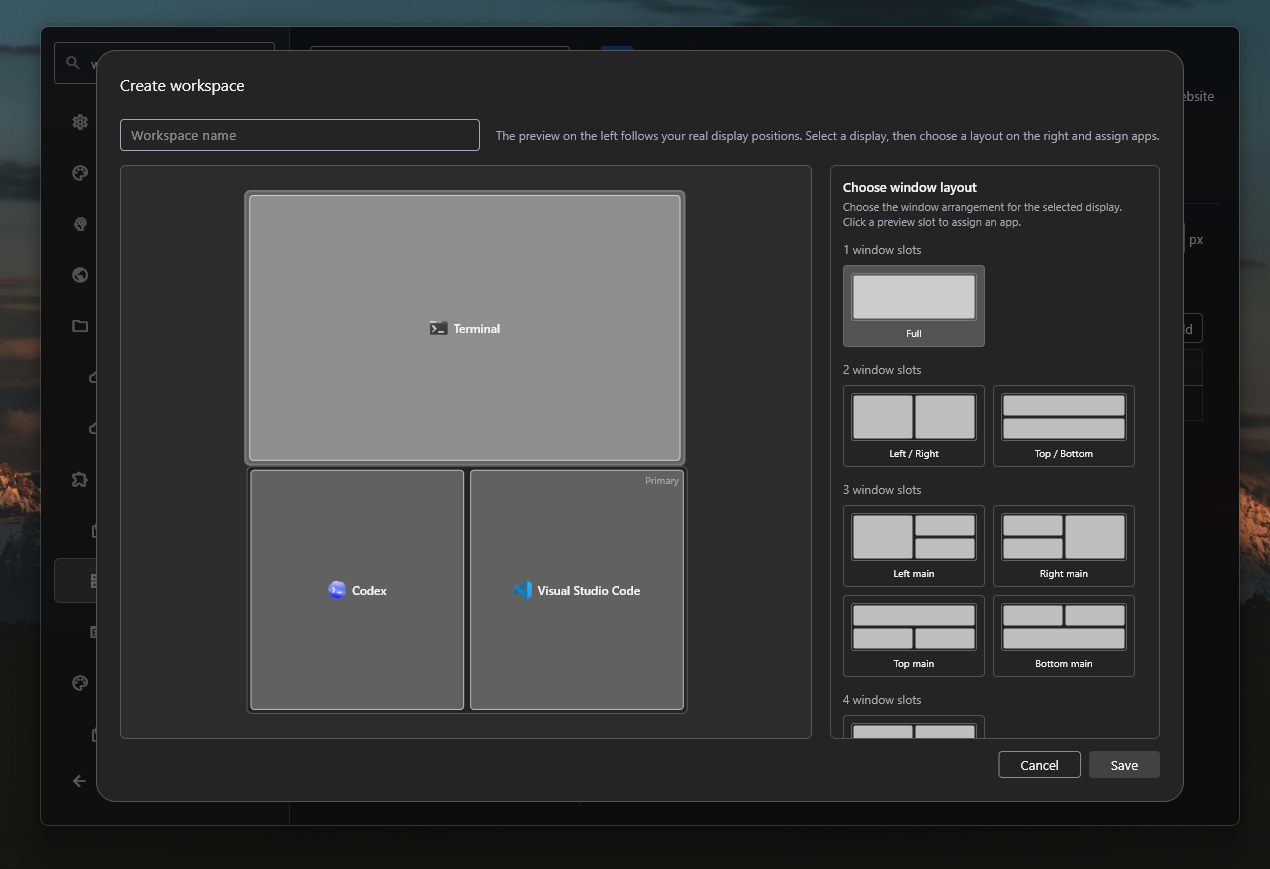
Start with the two windows you use together most often. Once they restore to the positions you want, add your terminal or notes. A small layout is easier to adjust than a desk full of windows.
Bring it back when you start work
Open Wox and enter:
window groupSelect Work and run it. Wox moves matching app windows into their assigned positions. If an app is not running and its configuration includes a usable app path, Wox tries to launch it, wait for a window, and place it.
The layout restores window positions. Which project or document an app opens, and how it restores its previous session, still depend on that app. You can open the project you need first, then let Wox arrange the windows.
Give the layout its own shortcut
For a layout you use every day, add a Query Hotkey in Settings → Hotkey → Query Hotkeys. Choose the Silent Run preset and enter:
window group WorkReplace Work with your workspace name and record an unused shortcut. Try the query in the launcher first to confirm that it matches only the intended workspace. Silent Run executes the default action when there is a single result, so you can skip selecting the workspace each time.
The connected displays matter. If a saved display is missing or an app prevents window management, Wox applies the parts it can and reports what it could not complete. After switching to a different display setup, revisit the workspace settings to check the arrangement.