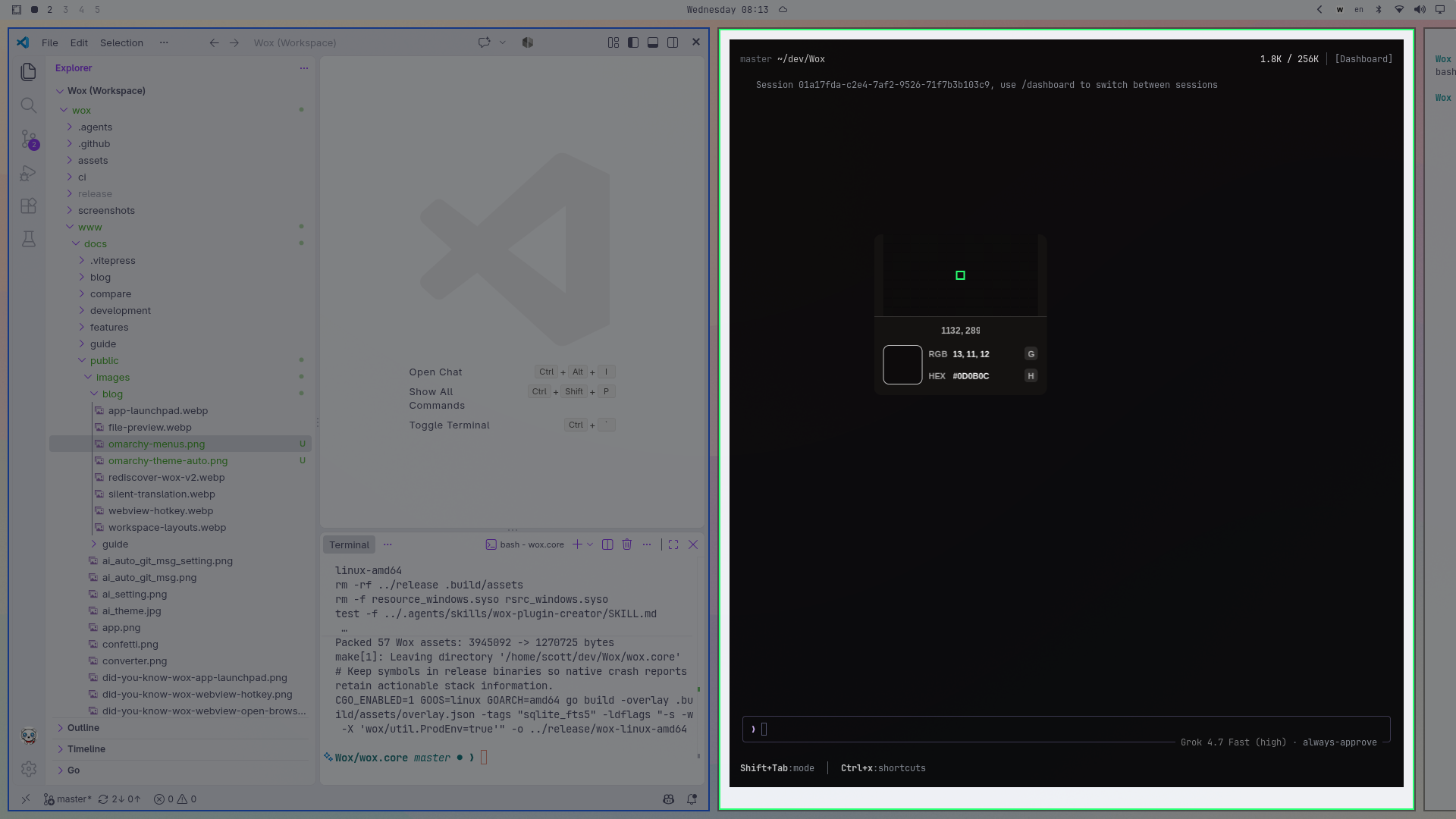
Wox Launcher loves Omarchy
Omarchy brings a coordinated look and a keyboard-friendly workflow to the Linux desktop. Wox should feel at home there too: its colors can follow the desktop, and the things you already do in Omarchy should be easy to reach from the launcher.
The improvements in this article will be available in Wox v2.4.9.
A launcher that follows your Omarchy theme
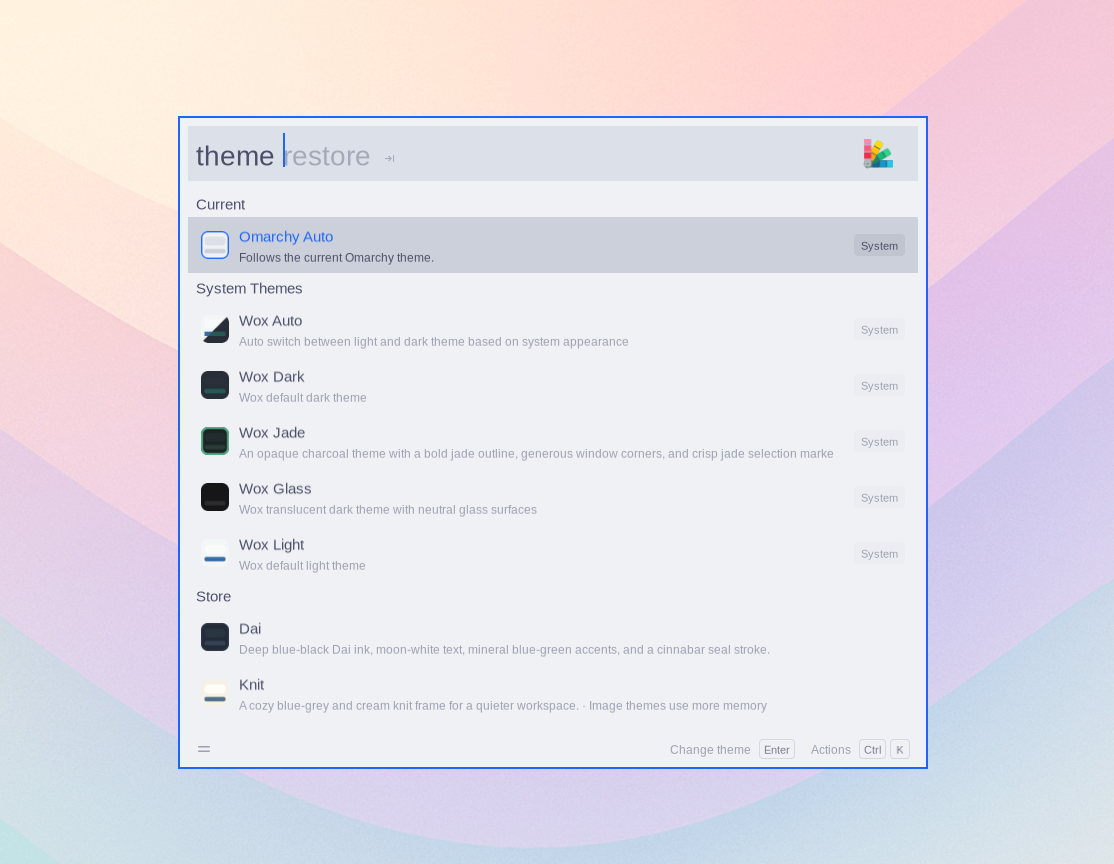
Omarchy Auto is a Wox theme available on Omarchy. It reads the active Omarchy palette and uses it for the launcher, including its background, text, selection colors, and border. When you switch Omarchy themes, Wox picks up the new colors while it is running. You do not have to choose a matching Wox theme each time.
On a new installation, the onboarding theme step selects Omarchy Auto by default. If you already use another theme, you can keep it or open Wox, type theme, and select Omarchy Auto. Try changing the Omarchy theme afterward and open Wox again: the launcher should reflect the new palette. Selecting another Wox theme remains an option whenever you prefer a different look.
An Omarchy theme switch also reloads Hyprland. Wox restores its Hyprland hotkey bindings and layer animation rule after that reload, so the launcher remains ready to use.
Find Omarchy commands from Wox
Open Wox and search for an Omarchy menu item, such as theme or lock. Matching Omarchy commands appear alongside other results, with an Omarchy label and their menu path. Select one to run its action; entries backed by a dynamic menu open the corresponding Omarchy submenu.
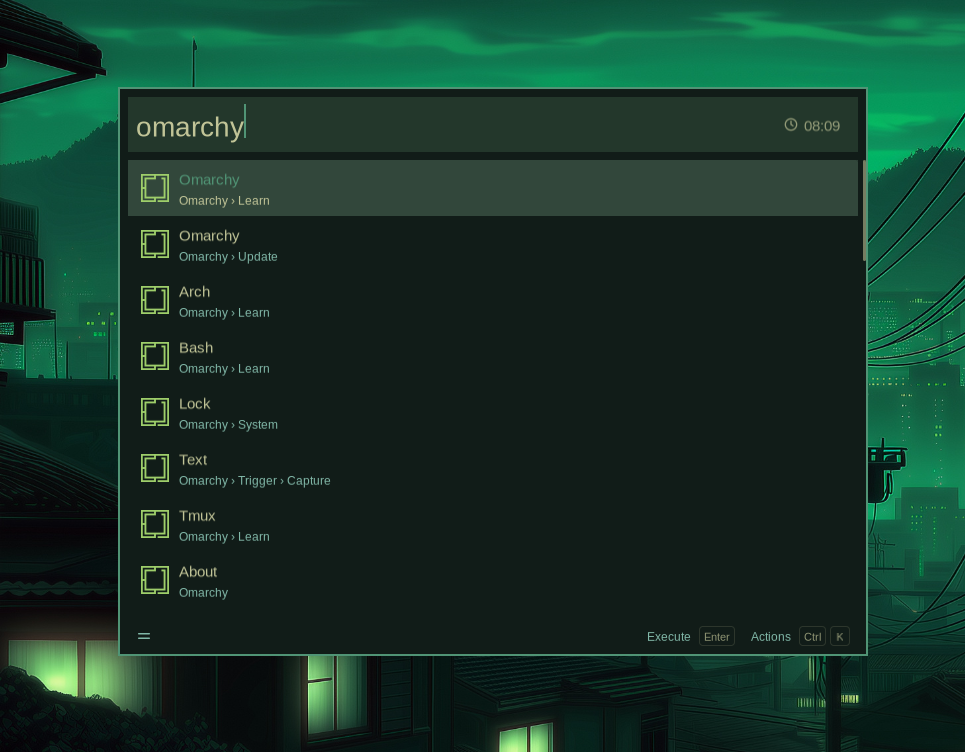
Wox reads the installed menu and the user's menu extension, so your own entries can be found too. Available results depend on the installed menu and its conditions; the Apps submenu is left to Wox's application search.
Shortcuts, windows, and screenshots
For a new Omarchy setup, the default launcher shortcut is Alt+Space. An existing saved shortcut is kept. On Linux, the onboarding example for a query hotkey starts at Ctrl+Alt+V, avoiding the Ctrl+Shift+V paste shortcut used by many terminals and applications.
On Hyprland, selecting an app that is already running can bring its existing window forward and switch to its workspace. If Wox cannot focus that window, it falls back to launching the app. Linux app results can also show CPU and memory usage for running applications.
For screenshots, run screenshot new and move the pointer over a window: on Hyprland, Wox can highlight the window for selection. The capture overlay also covers the area occupied by a panel. When adding a background to a window capture, Wox can find Omarchy's current wallpaper. See the screenshot guide for capture and editing options.