
Protect your privacy while using Wox
On a shared computer, you search for report in Wox, open the file you need, and copy a passage of text. When you are done, you close the Wox window and hand the computer to the next person.
Even with its window closed, Wox may retain search and clipboard history so you can find those entries later. That is useful on your own computer, but on a shared one you may prefer not to leave them behind. Or you may simply want to find a local file without Wox using network features in the background.
Wox's Privacy settings give you separate controls for these situations: clear local data on exit, pause network features, and inspect or turn off anonymous usage statistics. Here is how they work in everyday use.
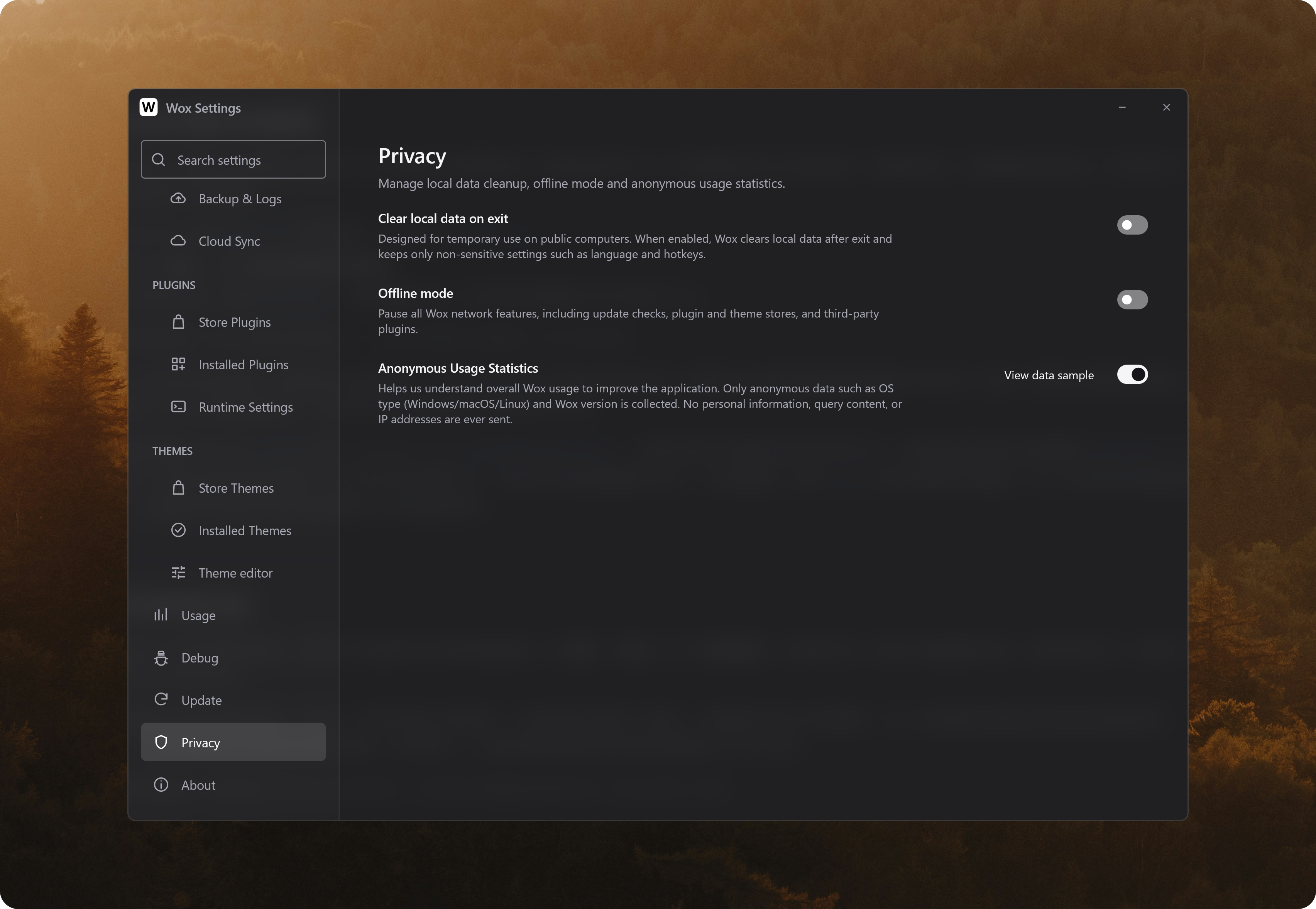
Clear local records before leaving a shared computer
Open Wox Settings with Ctrl+, (or Cmd+, on macOS), go to Privacy, and turn on Clear local data on exit.
When you are finished, search for exit wox and select Exit Wox. Closing the launcher window alone does not quit the application. Wox clears local data after it exits. When it starts again, cleared data such as the previous search history, clipboard history, and notes is no longer available. A small set of settings, including language and hotkeys, is retained. The switch stays on, so later exits clear data too, until you turn it off. If cleanup cannot finish on exit, Wox tries again before opening its window on the next launch.
First check whether the existing Wox data on the computer can be deleted. Cleanup includes existing notes, plugins, and backups in the local directory, not just data from your session. If a colleague also uses that Wox installation under the same system account, their data is affected too.
Cleanup covers ~/.wox (%USERPROFILE%\.wox on Windows). If the active user-data directory is outside it, such as a portable wox-user folder beside the executable, Wox shows an error when you try to enable the setting. Wox also refuses to clean a .wox directory that is itself a symlink. Files saved elsewhere, cloud copies, and data stored by other applications are outside this cleanup. The setting does not prevent someone using the same account from viewing data while Wox is running.
Pause network features when searching locally
Suppose you are away from your desk and want to open an editor already installed on your laptop, without Wox checking for updates or accessing online stores. Open Settings → Privacy and turn on Offline mode. Search for the editor by name and select it as usual; local file search remains available too.
Offline mode pauses network features such as update checks, the plugin and theme stores, and Cloud Sync. Web previews and online AI services are unavailable too. To prevent third-party plugins from continuing to use the network, Wox pauses all third-party plugins, including those that work locally. It keeps their enabled or disabled preferences and resumes them according to those choices when offline mode is turned off.
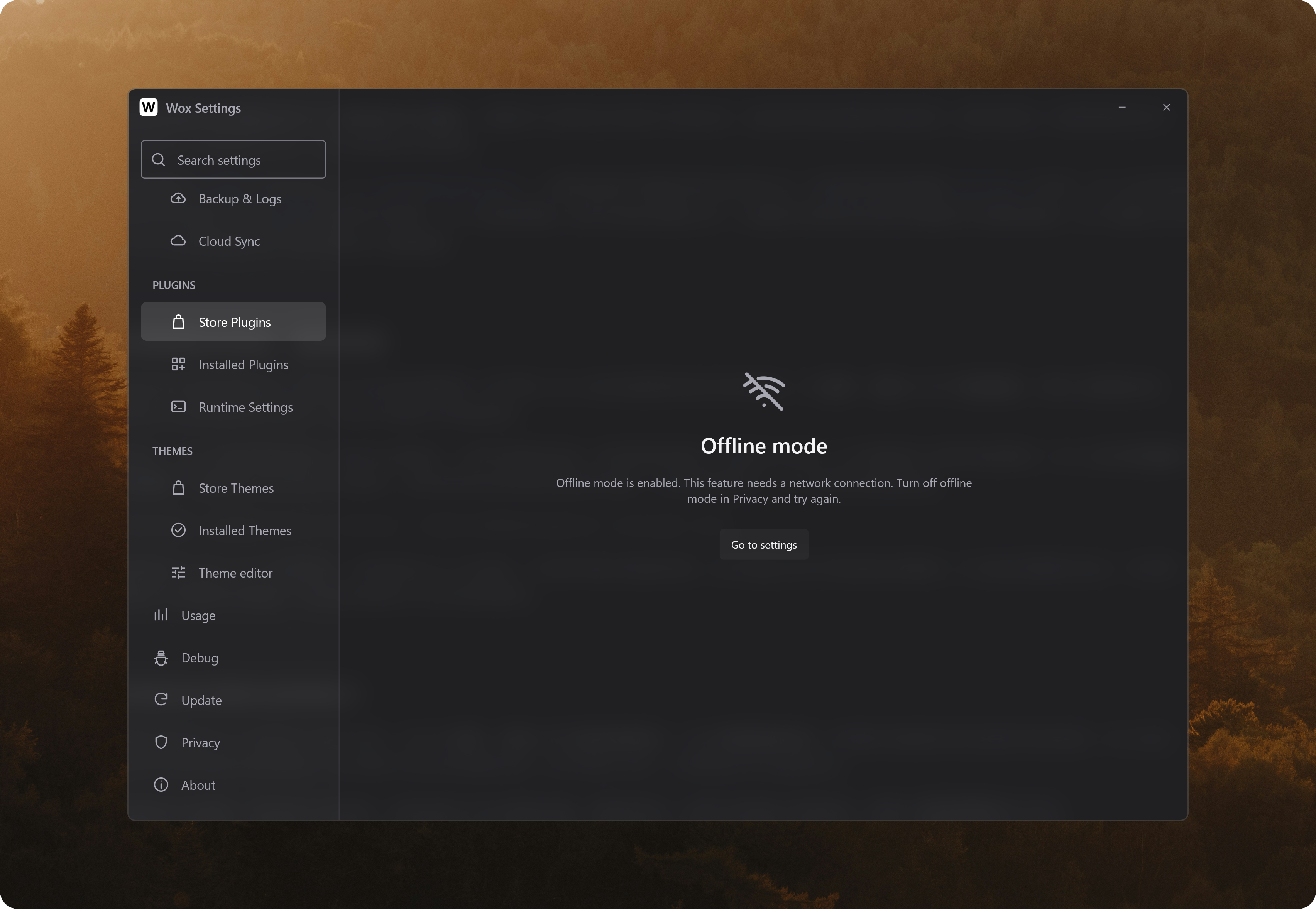
Offline mode is available from Wox 2.4.7. It controls Wox's features; it does not disconnect the computer or prevent other applications you open from using the network. The two settings are independent: offline mode does not delete local data, and clearing data on exit does not automatically pause network access.
Why Wox uses anonymous statistics
Wox supports Windows, macOS, and Linux, but the number of users differs across platforms. Anonymous usage statistics help us understand roughly how Wox is used on each one. That helps us prioritize everyday development and testing for platforms with more users, while also informing maintenance for the others.
Version information can help us understand adoption of a new release and decide when older versions still need attention. The send time and a hash of an installation identifier help us observe changes in usage without simply counting repeated reports from one installation as separate users. These figures cannot replace feedback: we still need reports and investigation to understand specific problems on each platform.
To see what the statistics contain, find Anonymous Usage Statistics in Settings → Privacy and select View data sample. The example includes fields for the operating system, Wox version, send time, and a hash of an installation identifier; the statistics payload does not include your search text. The setting is enabled by default, and you can turn it off if you do not want to send statistics.
Offline mode also pauses anonymous statistics while it is on, preserving your existing statistics preference. If you do not want sending to resume when you go back online, check that Anonymous Usage Statistics is turned off.
If you use Cloud Sync to keep data across devices, see Cloud Sync encryption and privacy for what syncs and what the encryption protects.