
Cloud Sync Plugin
Cloud Sync keeps supported Wox settings and plugin data available across your computers, including Windows, macOS, and Linux.
Plans and pricing
Cloud Sync has a free plan: use it on up to two active devices and sync manually. Pro is a paid subscription with unlimited devices and automatic sync. Both plans include encrypted sync; the free plan has a stricter sync frequency limit. Check Settings -> Data -> Cloud Sync for the current Pro price and subscription options. Wox itself does not require a subscription for use on one computer.
Quick start
- On your first computer, open Settings -> Data -> Cloud Sync, sign in or create an account, and verify your email.
- Enable Cloud Sync and set an encryption password. Save it somewhere safe: you will need it to restore your data on another device.
- On each additional computer, sign in to the same account, enable Cloud Sync, and enter the same encryption password to restore the cloud data.
- On the free plan, run
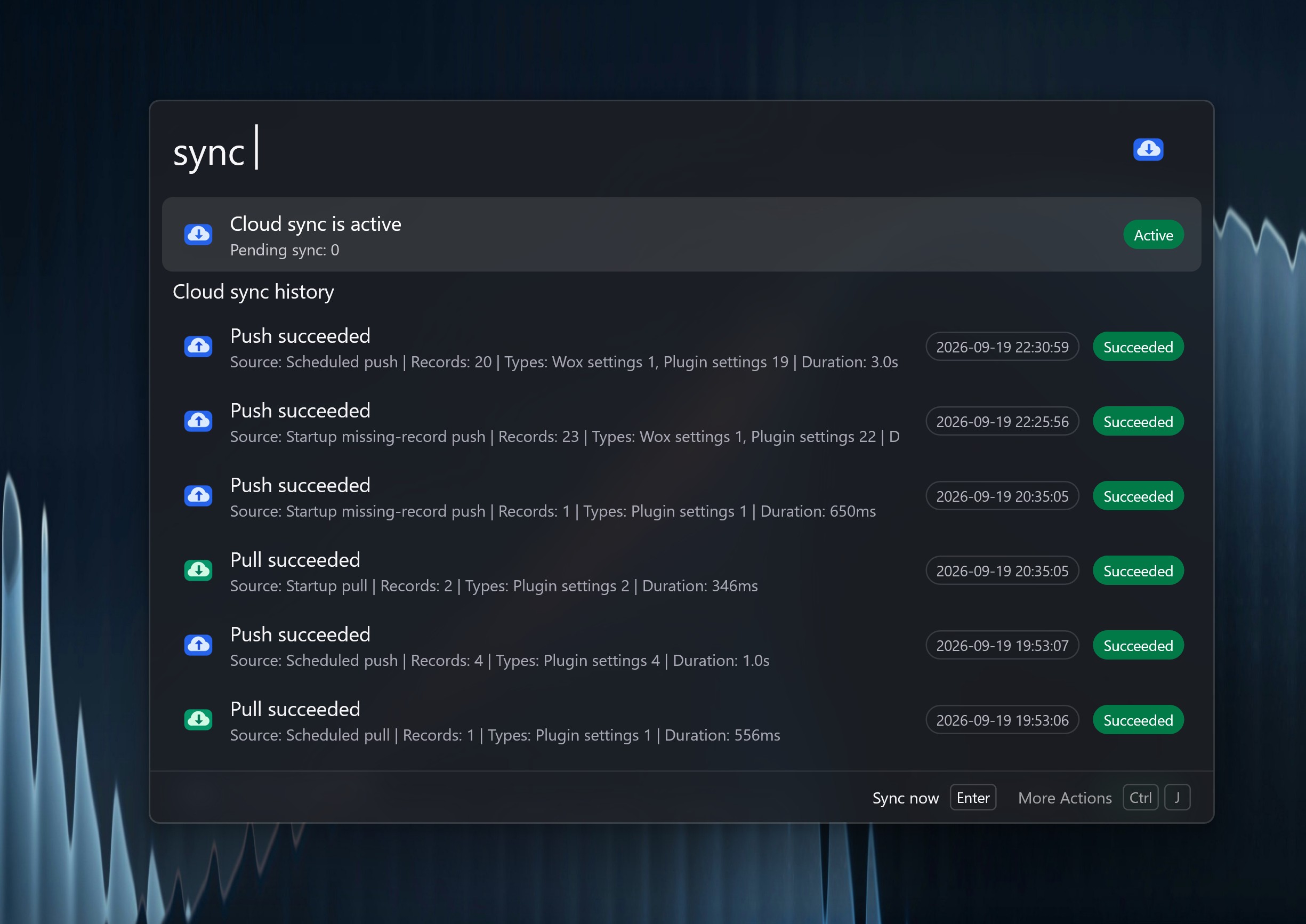
syncorcloudsyncand choose Sync now on each device to send and receive changes. Pro syncs automatically as well.
Search for sync to see the current status, pending changes, and recent sync history. You can also manage devices and sync from Cloud Sync settings. If you reach the free plan's device limit, revoke an existing device there before joining another.
Encryption and privacy
Wox encrypts sync values on your device with AES-256-GCM before uploading them. It generates a random data encryption key and uses a key derived from your encryption password with Argon2id to protect that key. The server stores the encrypted key; your password is needed to unlock it on another device. The unlocked key is stored in the device's OS keyring.
The encryption password is separate from your account password and cannot be recovered by Wox. Keep it safe. If you forget it, you can start a new sync with a new password, but this overwrites the cloud backup with the local data on that device. First make sure that device has the data you want to keep.
Encryption protects the contents of synced values, not all information needed to operate the service. Sync requests also include metadata such as device ID, platform, record type and key, operation, and timestamps. Protect access to your account and devices as well as your encryption password.
What syncs across platforms
Wox syncs supported app and plugin settings and data, plus eligible installed plugins and themes. Plugin settings can include data such as note text. You can exclude individual plugins in Cloud Sync settings.
Some data has special rules:
- Notes and clipboard: note text and favorite clipboard items sync; note images and regular clipboard history stay on the device.
- Platform-specific settings: shortcuts, file paths, runtime paths, fonts, and other system-dependent settings are kept per platform. For example, a Windows shortcut does not replace the macOS shortcut. Paths can still differ between computers running the same system, so check them on each device.
- Plugins and themes: eligible store plugins and themes can be restored on another device. Plugins unsupported on that system are skipped; local development plugins and local themes are not installed through sync.
- Local-only settings: settings marked as local remain on the device.
See the configuration sync notes in Cloud Sync settings for the full list of special cases. For a manual export, see Backup.