
File Plugin
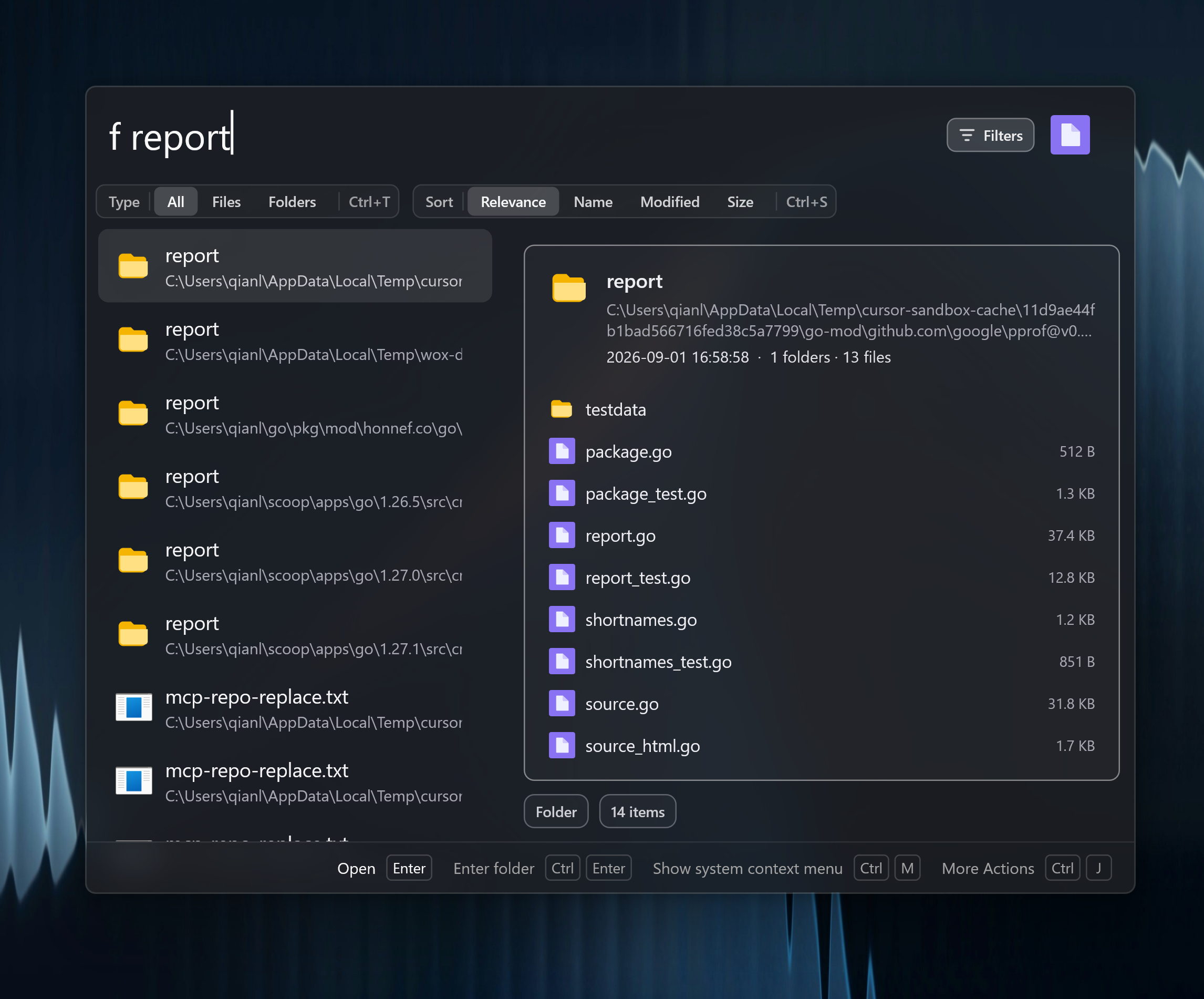
The File plugin searches files and folders using a local index. Use the f keyword when you want file results instead of global app, web, or calculator results.
Quick Start
f report
f README.md
f Documents invoice
f .pdf
The first run may show indexing status while Wox scans configured roots. Results become faster and more complete after the initial index is ready. An empty f query lists recent files from the OS.
What Gets Indexed
Open Settings -> Plugins -> File to manage roots. The regular filename index uses those roots and skips common system/generated directories that are not useful for launcher search. On Windows, an active Fast Index service searches indexed NTFS volumes instead of limiting filename search to these roots.
Use a small, deliberate root list for best results:
- Good: home subfolders, project folders, document folders, mounted work directories.
- Avoid: whole system volumes, dependency caches, build output directories, VM images, and folders with huge generated trees.
Fast Index (Windows)
On Windows, File Search can use optional Fast Indexing. Open Settings -> Plugins -> File and install the Wox NTFS service. The service reads the volume MFT and USN journal so large NTFS drives stay current without a full crawl. Installing it requires administrator access.
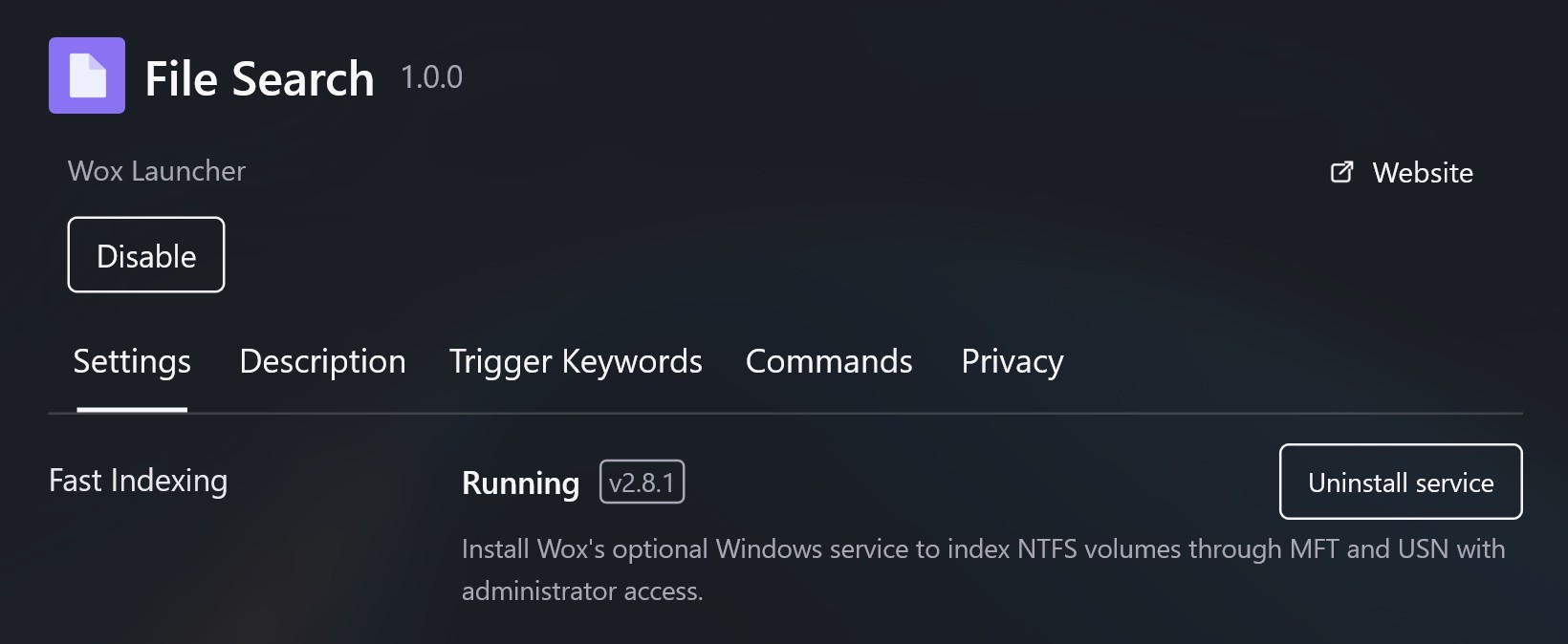
Fast Indexing is Windows-only. macOS and Linux keep using the regular root-based index. Content-search directories are configured separately from filename-search roots and remain scoped to those content directories even with Fast Index.
For a short overview of what File Search is for, see File search launcher.
Actions
| Action | Use |
|---|---|
| Open | Open the file or folder with the default app |
| Enter folder / Browse folder | Press Shift+Enter to browse the selected folder or a file's containing folder inside Folder, using Folder's current trigger keyword |
| Open containing folder | Reveal the result in the file manager |
| Delete | Move the item to trash |
| Show context menu | Use the platform file menu when available |
While browsing, use Shift+Enter again to enter subfolders. Enter continues to open files and folders with the default app.
Search Tips
- Use file name fragments:
f invoice q1. - Add an extension when you know it:
f proposal .pdf. - Spaces combine conditions with AND, in any order:
f amiga .txtmatchesamiga_workbench.txt. Use double quotes for a continuous phrase:f "release notes" .txt. - Add a folder hint when names are common:
f design README. - For the regular index, narrow the configured roots if results are too broad. Fast Index searches indexed NTFS volumes independently of filename roots; use ignore rules and more specific queries there.
Index Status
The File plugin can show toolbar status while it prepares, scans, or syncs roots. This is normal after first launch, after root changes, or after a large file move.
If search status reports a permission problem, grant Wox access to the affected folder and let the index refresh.
Troubleshooting
A file is missing
- Check the active index mode: confirm the file is under a configured root for the regular index, or on an indexed NTFS volume for Fast Index.
- Confirm Wox has permission to read the folder.
- Wait for indexing to finish if the file was just created.
- Restart Wox if a removable drive or network mount was attached after Wox started.
Search is slow
- For the regular and content indexes, remove very large generated folders from roots.
- Keep regular and content roots focused on places you actually search.
- Check logs under the Wox data directory if toolbar status stays in one phase for too long.