
AI Settings
AI features are optional. Configure a provider only if you want AI Chat, AI Commands, AI-assisted emoji search, AI-refined dictation, or AI theme generation.
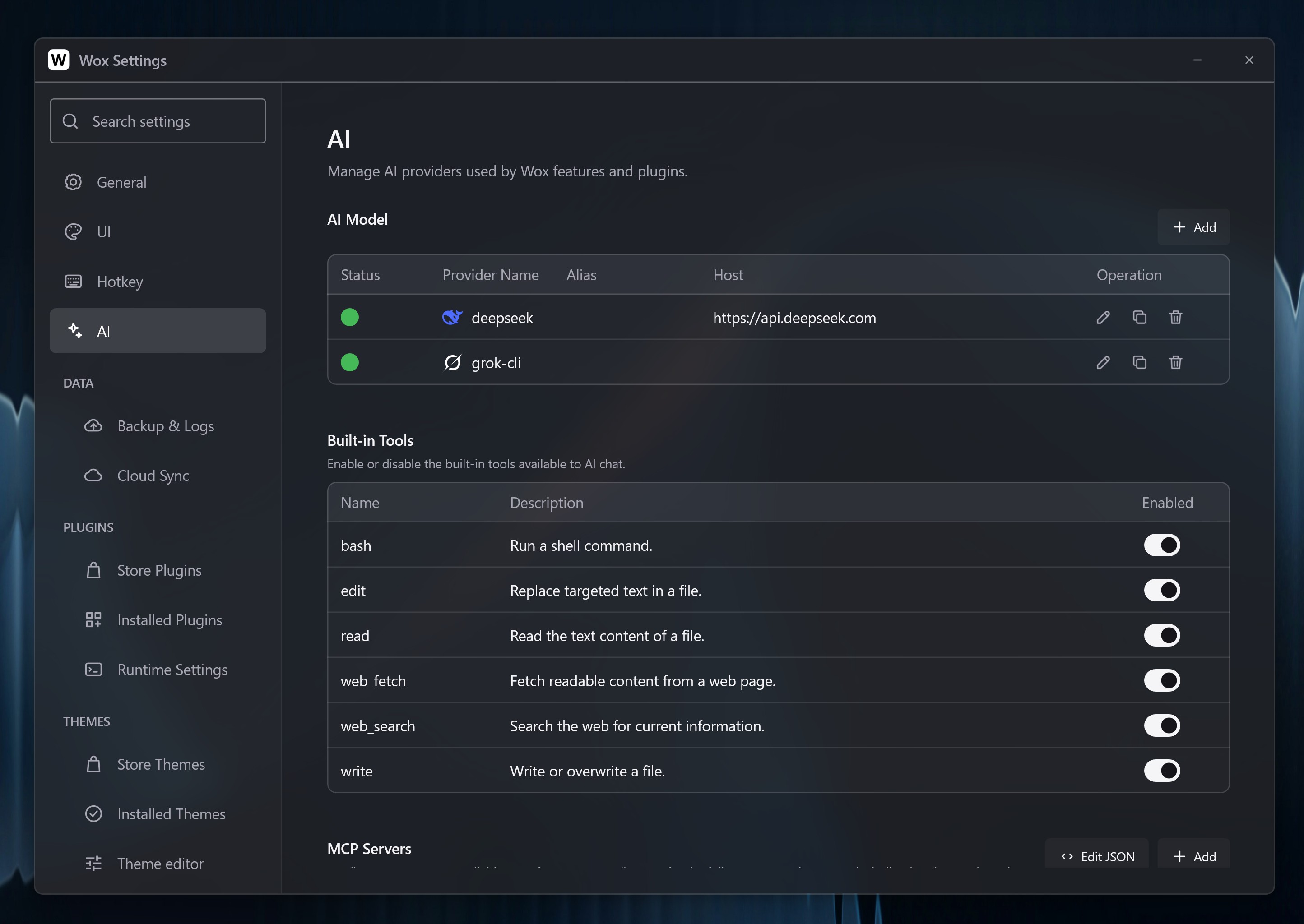
Add a Provider
- Open Settings -> AI.
- Click Add.
- Choose an API provider or an Installed CLI provider.
- Enter the provider name, credential or CLI details, model, and a custom host if needed.
- Save the provider and select it in the feature that should use it.
The provider list is grouped into API and Installed CLI. API providers use a key and optional host. CLI providers use a local binary that is already installed, such as a desktop coding agent, and show a brand icon when Wox recognizes them. The list is searchable.
What the Settings Mean
| Field | Use |
|---|---|
| Provider name | A label you recognize in Wox settings. |
| API key | The credential Wox sends to an API provider. |
| Host | Optional API endpoint for compatible services, proxies, or local servers. |
| Model | The model used by chat, commands, or generation features. |
| CLI | The installed local command for an Installed CLI provider. |
Security Notes
- Treat API keys like passwords.
- Paid providers may bill each request, including AI Commands and theme generation.
- Custom hosts should be trusted; Wox sends your prompt content to that endpoint.
- Avoid sending sensitive clipboard text, selected text, or private files to online models unless you understand the provider policy.
Related Features
Troubleshooting
If an AI feature does not return anything, check these first:
- The provider is enabled and selected by the feature.
- The API key is valid, or the CLI binary is on your PATH.
- The model name is accepted by the provider.
- The custom host URL is reachable.
- Network access is available for API providers.