
Preview
Many results can open a preview instead of jumping straight into another app. Use this when you want to confirm a file, clipboard item, screenshot, or web page first.
From the Result List
When the highlighted result supports preview, Wox shows it automatically beside the list, or filling the available space for some result types. You do not need to press a key.
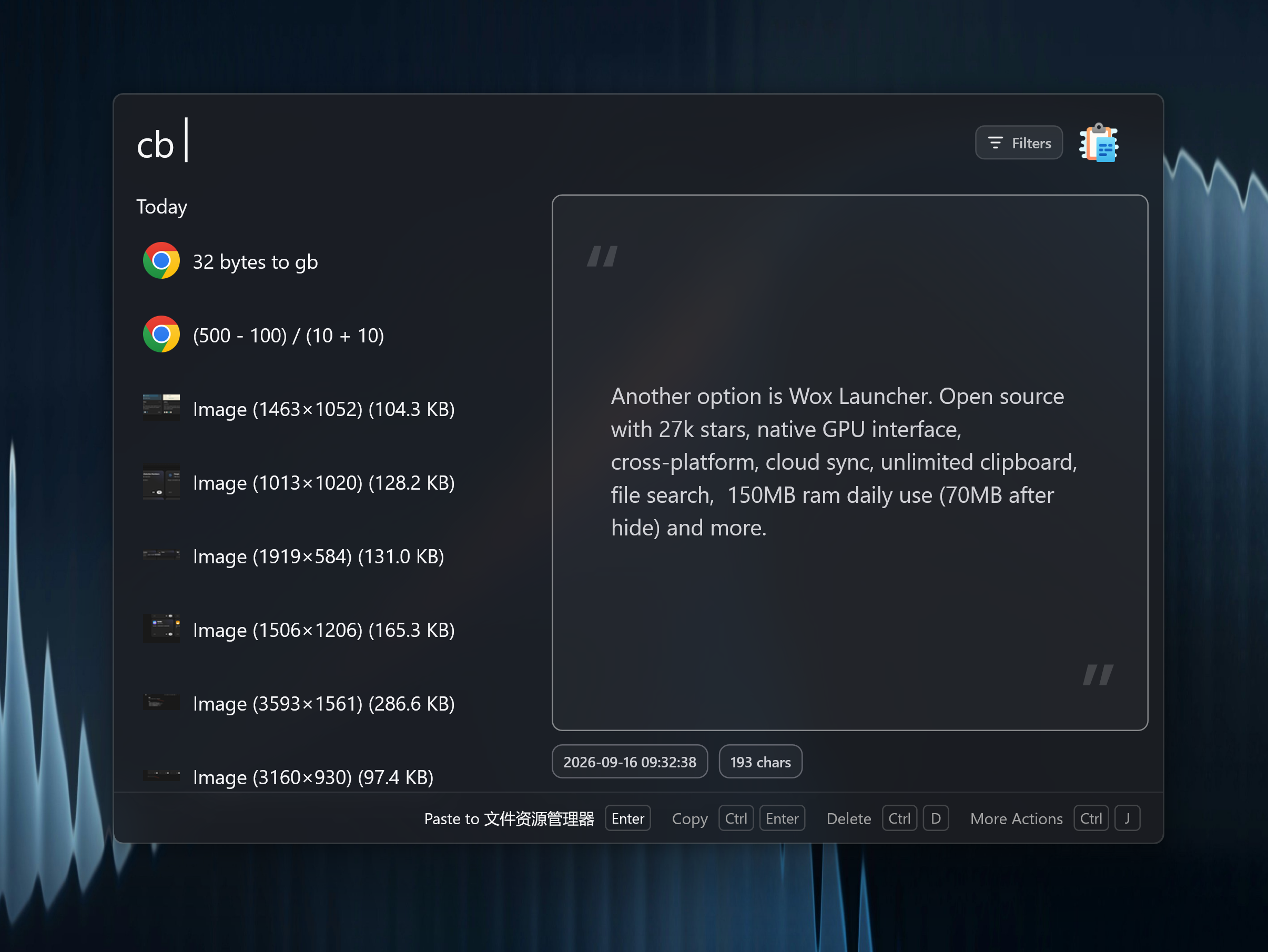
Typical preview sources:
| Result | What you see |
|---|---|
| File | Theme-aware preview for supported text, images, PDF, and Office files |
| Clipboard item | Text, image, or OCR text from a copied picture |
| Screenshot | The captured image, with actions to copy, pin, or save to Notes |
| WebView | An embedded site panel |
| Media | Artwork, progress, and playback controls |
Large text, Office, and PDF previews start with details first so rapidly moving through the list does not kick off heavy reads.
Space Quick Look on Windows
On Windows, the Selection plugin can preview a file that is already selected in File Explorer or an open/save dialog.
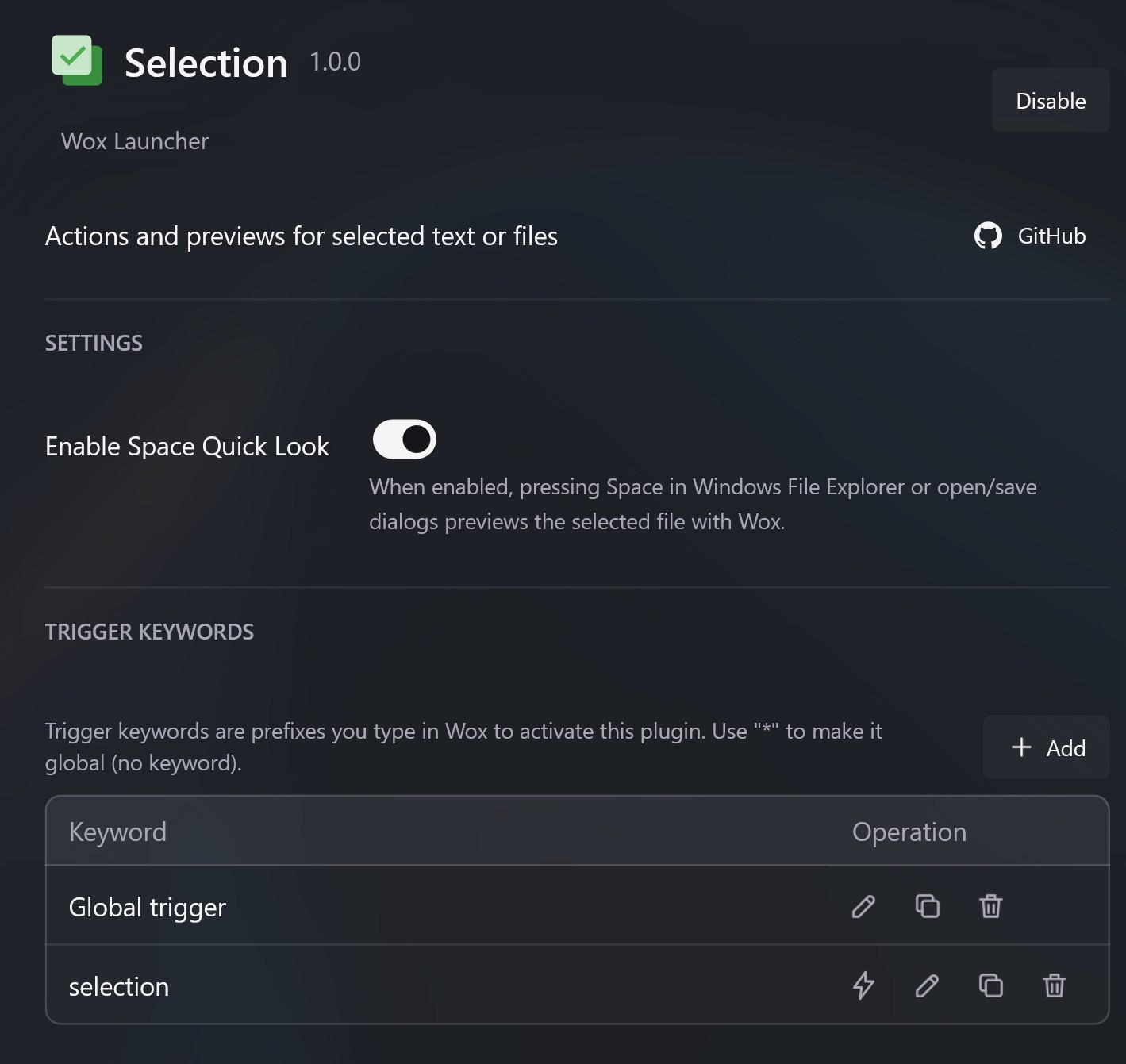
- Open Settings -> Plugins -> Selection.
- Enable Space Quick Look.
- Select one file in Explorer or a dialog.
- Press
Space.
Wox opens a preview-only panel for that file. macOS keeps this setting disabled because Finder already has Quick Look.
Preview Query Hotkeys
If you often preview the same thing, bind a Query Hotkey with the Preview Query preset. That hides the query box and toolbar so the panel is mostly the preview. See Hotkeys and the WebView example.