
Window layouts and workspace restore
Updated September 2026 · Latest v2.4.5 · GitHub Release · Changelog
The Window Manager plugin snaps the active window and can restore a saved workspace. It is available on Windows and macOS.
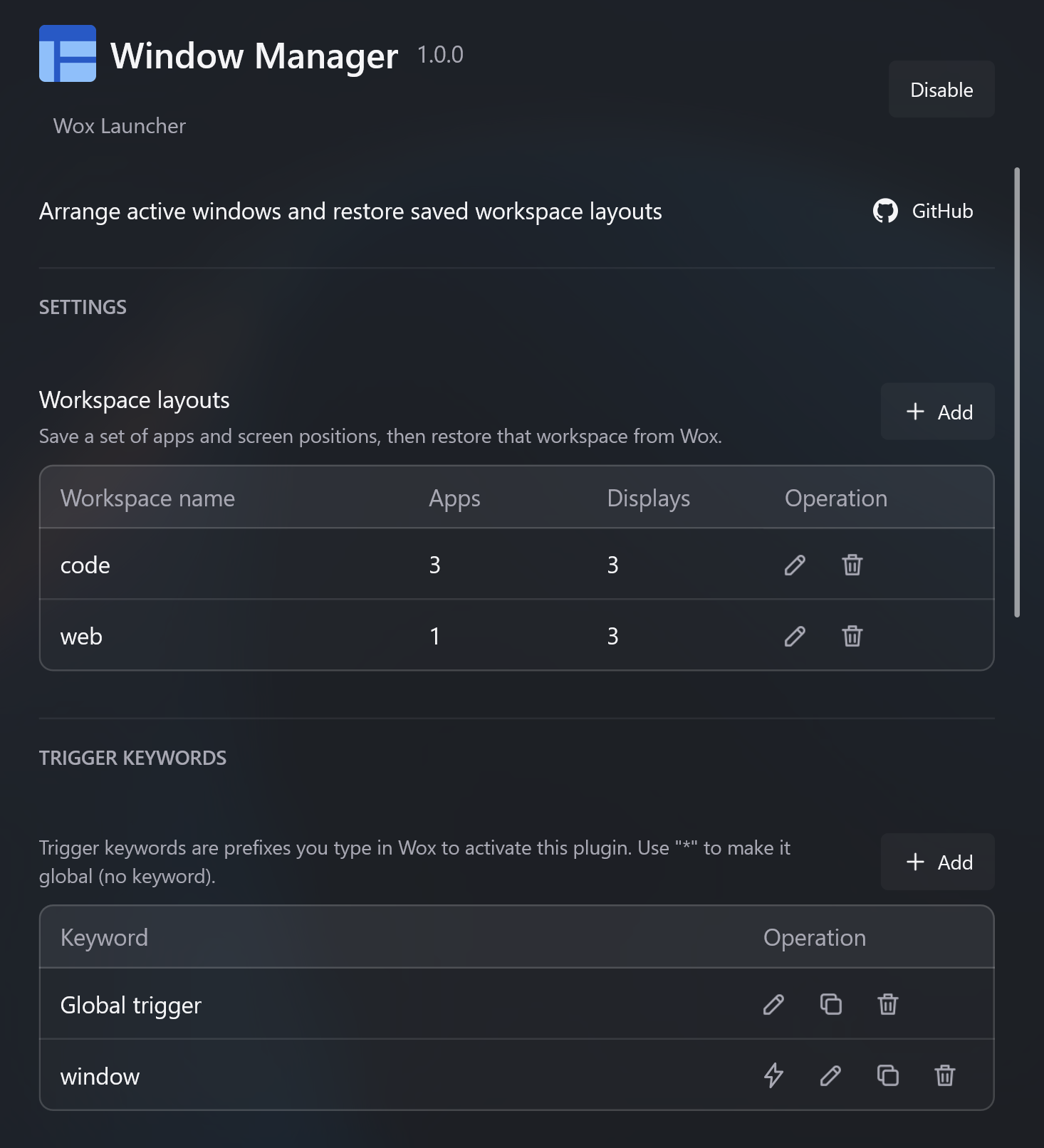
Snap the current window
Query window, then a layout name:
window left
window right-half
window maximize
window next-display
Common commands include halves, quarters, thirds, maximize, center, minimize, restore, and move to the next or previous display. Many commands accept aliases such as left or 左半屏.
Restore a workspace
A workspace layout remembers which apps belong on which display slots.
- Open Settings -> Plugins -> Window Manager.
- Add a workspace under Workspace layouts.
- Choose a layout for each display and assign apps to the slots.
- Run:
window group
window group Work
Wox moves matching windows into the saved slots. If an assigned app is not open and Wox knows its path, it can launch the app first, then place the window.
For a one-keystroke flow, bind a Query Hotkey to window group Work. If that query resolves to one workspace, Silent Run can apply it without showing the launcher. See Hotkeys.
Workspace layouts arrange normal app windows on the current display setup. If an app blocks system window management, or a saved display is disconnected, Wox applies what it can.