
Querying
Open Wox, type what you want, then act on the selected result. You do not need every plugin keyword, but keywords are useful when you want one plugin to handle the query.
Query Types
| Type | Example | Notes |
|---|---|---|
| Global search | chrome | Lets global plugins compete, such as apps, calculator, converter, and web search. |
| Keyword query | f invoice | Sends the query to a plugin with a trigger keyword. |
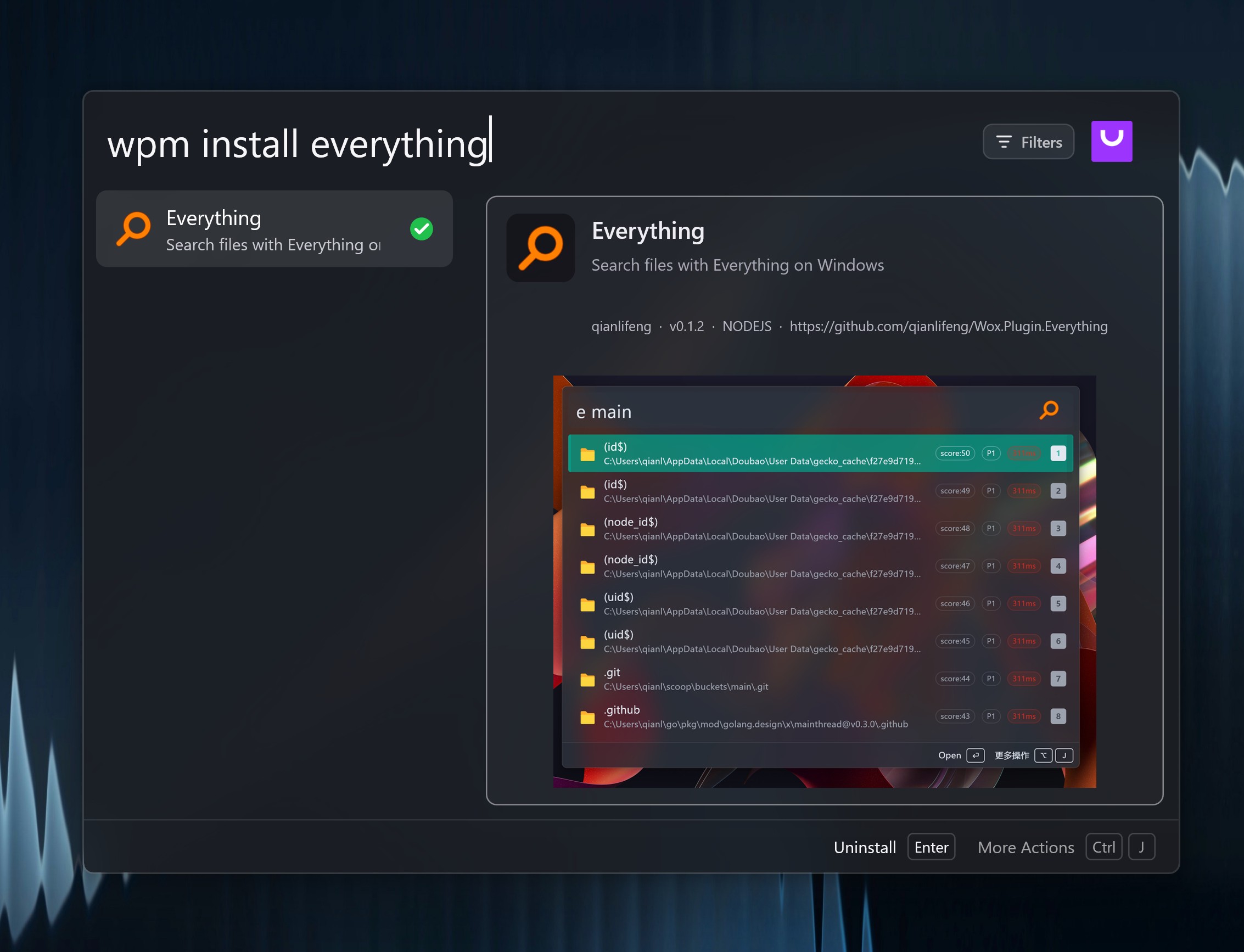
| Command query | wpm install | Runs a command inside a plugin. |
| Hinted query | g then Tab | Fills named inputs for a command or web search template. |
| Selection query | Select text or files, then trigger Wox | Used by plugins that work with the current selection. |
Keywords and Commands
A keyword is the first word in the query. If it matches a plugin trigger, Wox sends the rest of the query to that plugin.
text
wpm install everything| Part | Meaning |
|---|---|
wpm | Plugin Manager trigger |
install | Plugin Manager command |
everything | Search term passed to the command |
Common built-in keywords:
| Keyword | Plugin |
|---|---|
f | File search |
cb | Clipboard history |
note | Notes |
screenshot | Screenshot |
timer | Timer |
jump | Quick Jump |
emoji | Emoji search |
chat | AI chat |
ai | AI Command |
wpm, store, pm | Plugin Manager |
calculator | Calculator / converter explicit mode |
h | Query history |
Query Hints
Some commands collect more than one value. After you type the keyword and a space, Wox can show named slots such as query or page.
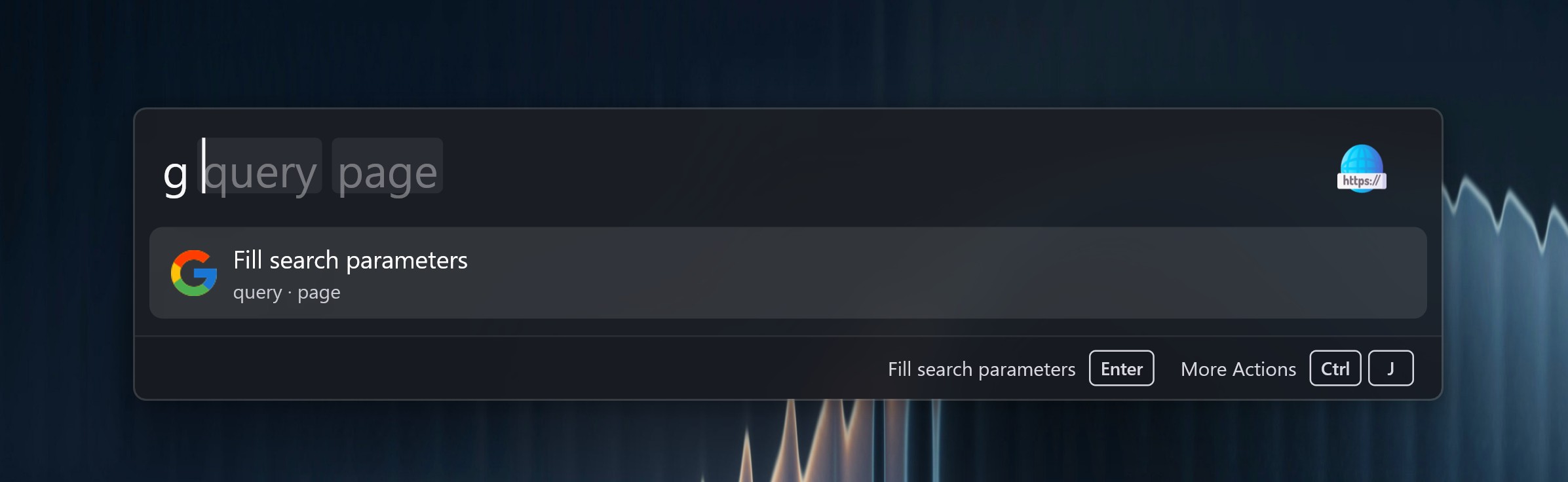
Tab/Shift+Tabmove between slots.- Each slot can contain spaces.
- Single-input searches still accept the entire text after the keyword.
Web Search templates can also insert selected text or clipboard text captured before Wox takes focus. See Web Search.
Shortcuts
| Shortcut | Description |
|---|---|
Windows: Alt + Space | Toggle Wox visibility |
macOS: Command + Space | Toggle Wox visibility |
Linux: Ctrl + Space | Toggle Wox visibility |
Esc | Hide Wox or go back from a nested view |
Up / Down | Move through results |
Enter | Run the selected result's primary action |
Windows/Linux: Ctrl + K; macOS: Command + K | Open the Action Panel. Change this in Settings. |
Windows/Linux: hold Alt then 1-9; macOS: hold Command then 1-9 | Run a visible result by its number |
Tab | Complete a suggested query, or move to the next query hint |
Shift+Tab | Replace the query with the selected result title, such as a calculator result, or move to the previous query hint |
The main hotkey, selection hotkey, query hotkeys, and tray queries are covered in Hotkeys.